| AWS Tools for Microsoft Visual Studio Team ServicesTasks for Amazon S3, AWS Elastic Beanstalk, AWS CodeDeploy, AWS Lambda and AWS CloudFormation and more, and running commands in the AWS Tools for Windows PowerShell module and the AWS CLI. |


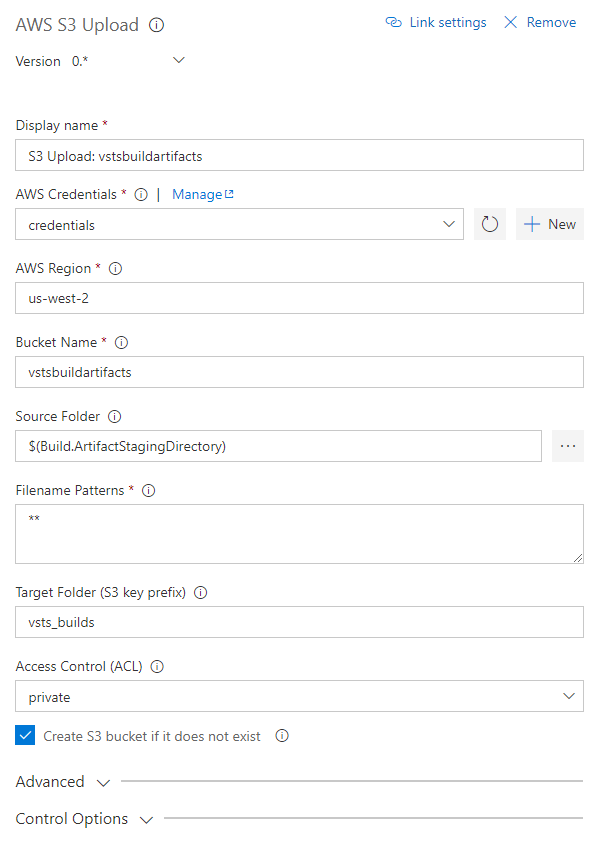
OverviewThe AWS Tools for Microsoft Visual Studio Team Services (VSTS) adds tasks to easily enable build and release pipelines in VSTS and Team Foundation Server to work with AWS services including Amazon S3, AWS Elastic Beanstalk, AWS CodeDeploy, AWS Lambda, AWS CloudFormation, Amazon Simple Queue Service and Amazon Simple Notification Service, and run commands using the AWS Tools for Windows PowerShell module and the AWS CLI. The AWS Tools for VSTS is available from the Visual Studio Marketplace. Note for Team Foundation Server 2015 Users: Team Foundation Server 2015 users should download the extension from here. This temporary version contains the same tasks as the version in the marketplace but removes the support for extra fields in the AWS endpoint type to support Assume Role credentials. These fields, although marked optional, are unfortunately treated as required in TFS 2015 editions. Highlighted FeaturesTransfer Files to and from Amazon S3 BucketsUpload files to an Amazon Simple Storage Service (S3) Bucket with the AWS S3 Upload task or download from a bucket with the AWS S3 Download task.
Deploy .NET Core serverless applications or standalone functions to AWS Lambda
Invoke an AWS Lambda FunctionInvoke Lambda functions from within the build or release pipeline.
Create/update AWS CloudFormation stacksCreate new AWS CloudFormation stacks or update an existing stack.
Deploy to AWS Elastic BeanstalkDeploy ASP.NET or ASP.NET Core applications to Elastic Beanstalk environments.
Deploy to Amazon EC2 with AWS CodeDeployDeploy applications to EC2 instances using CodeDeploy.
Send a message to an Simple Notification Service Topic or Simple Queue Service Queue
Run AWS Tools for Windows PowerShell scriptsRun scripts using cmdlets from the AWS Tools for Windows PowerShell (AWSPowerShell) module, optionally installing the module before use.
Run AWS CLI commandsRun AWS CLI commands against an AWS connection.
Credentials Handling for AWS ServicesTo enable tasks to call AWS services when run as part of your build or release pipelines AWS credentials need to have been configured for the tasks or be available in the host process for the build agent. Note that the credentials are used specifically by the tasks when run in a build agent process, they are not related to end-user logins to your VSTS or TFS instance. The AWS tasks support the following mechanisms for obtaining AWS credentials:
Configuring an AWS Service EndpointTo use AWS service endpoints add the AWS subscription(s) to use by opening the Account Administration screen (gear icon on the top-right of the screen) and then click on the Services Tab. Note that each VSTS/TFS project is associated with its own set of credentials. Service endpoints are not shared across projects. You can associate a single service endpoint to be used with all AWS tasks in a build or multiple endpoints if you require. Select the AWS endpoint type and provide the following parameters. Please refer to About Access Keys:
Note We strongly suggest you use access and secret keys generated for an Identity and Access Management (IAM) user account. You can configure an IAM user account with permissions granting access to only the services and resources required to support the tasks you intend to use in your build and release definitions. Tasks can also use assumed role credentials by adding the Amazon Resource name (ARN) of the role to be assumed and an optional identifier when configuring the endpoint. The access and secret keys specified will then be used to generate temporary credentials for the tasks when they are executed by the build agents. Temporary credentials are valid for up to 15 minutes by default. To enable a longer validity period you can set the 'aws.rolecredential.maxduration' variable on your build or release definition, specifying a validity period in seconds between 15 minutes (900 seconds) and one hour (3600 seconds). Minimum supported environments
ContributorsWe thank the following contributor(s) for this extension: Visual Studio ALM Rangers. |