ImageResizer 5 - Better images, faster sites



If you can use .NET 5, 6, or 7, use Imageflow.Server in place of ImageResizer. This readme is for ImageResizer 5.x for .NET Framework 4.x. Click for the ImageResizer 4.x, 3.x, or 2.x readme.
We've made some major changes in V5 to greatly improve image quality, file sizes, concurrency, maintainability, and response times. Read the changelog and follow suggestions in /resizer.debug when migrating from V4.
Quick Start: Install the ImageResizer.WebConfig NuGet package, run your app, then visit /resizer.debug
- Enables fast on-demand image compression, resizing, and manipulation via the querystring.
- Easy: https://example.com/image.jpg?width=100&height=200&mode=crop
- Use
<picture>andsrcsetwithout leaving your IDE (bye, Photoshop). - Makes implementing product and image galleries trivially easy.
- Can process images from S3, Azure Blobs, and more (very extensible).
- Cutting-edge low-latency disk caching to keep response times blazing fast.
- Designed and hardened for server-side use.
- Easy to use with a CDN, or behind a reverse proxy.
- Extensive collection of plugins, including more than a dozen from the wider community.
- Integrates with most CMSes, and is included by many.
- Great for use with both public and private (secured) images; supports custom authorization rules.
ImageResizerincludes an HttpModule for .NET Framework 4.7.2/4.8.ImageResizer.WebConfiginstalls the HttpModule in Web.config.ImageResizer.Plugins.Imageflowinstalls the Imageflow backend. Imageflow is what provides excellent image quality and file sizes, and is required for most image manipulation commands. If you're not using ASP.NET, you can use it directly via theImageflow.Netpackage.Imageflow.NativeRuntime.win-x86 (enable pre-release)installs the 32-bit imageflow.dllImageflow.NativeRuntime.win-x86_64 (enable pre-release)installs the 64-bit imageflow.dll. Keep this pacakge updated!ImageResizer.Plugins.AzureReader2allows processing images located in Azure Blob storage.ImageResizer.Plugins.S3Reader2allows processing images located in Amazon S3.ImageResizer.Plugins.HybridCacheis essential for scaling your website to high traffic. It offers an insanely well optimized, low latency disk cache with accurate space limiting. It replaces DiskCache and does everything better.ImageResizer.Storageis useful for integrating ImageResizer with alternate image storage locations.
ImageResizer has a very simple (and powerful) URL API.
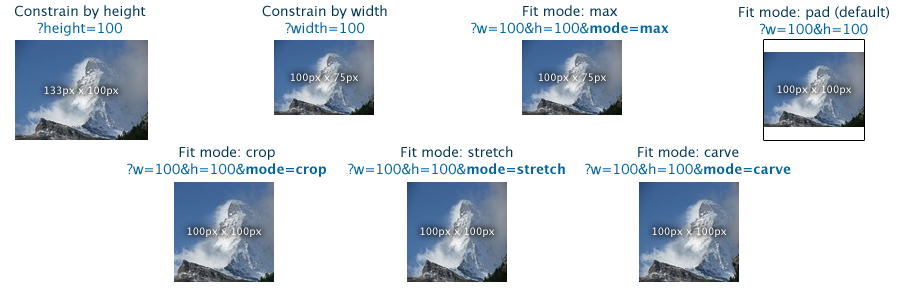

For more information, check out the website.
- ImageResizer and ImageResizer.WebConfig are licensed under the Apache 2.0 license.
- ImageResizer.Plugins.Imageflow, .HybridCache, .AzureReader2, and .S3Reader2 require a commercial license or compliance with the AGPL 3.0.
- Getting Started
- Basic Installation Guide
- Installing a Plugin Manually
- Reference
- List of Plugins
- Full Command Reference
- Managed API Examples
- Configuration Reference
- Nifty Tricks
- Watermark Images Based on Folder Name or Display Size
- Generate Thumbnails and Multiple Sizes to Disk
- Convert and Resize Images as They Are Uploaded
- Troubleshooting
- Accessing Self-Diagnostics
- Getting Detailed Error Messages
- What Might be Wrong
- Everything Else
- Licensing and Support Information
- Contact Us
Below is a basic installation guide, although a more comprehensive one can be found on our website.
Starting with ImageResizer v5, you'll want to avoid nuget.packages and use the ProjectReference format instead in your projects.
PM> Install-Package Imageflow.NativeRuntime.win-x86 -pre
PM> Install-Package Imageflow.NativeRuntime.win-x86_64 -pre
In V5, ImageResizer rolled the vast majority of plugin features into ImageResizer.Plugins.Imageflow. That's why so many plugins are deprecated; they're duplicating Imageflow functionality.
Nearly all ImageResizer plugins are on NuGet. You can enable source symbols from symbolsource.org for an enhanced debugging experience.
Get the basics:
PM> Install-Package ImageResizer.WebConfig
PM> Install-Package ImageResizer.Plugins.Imageflow
PM> Install-Package Imageflow.NativeRuntime.win-x86 -pre
PM> Install-Package Imageflow.NativeRuntime.win-x86_64 -pre
PM> Install-Package ImageResizer.Plugins.HybridCache
- In your project, add a reference to the plugin DLL (or project, if you're using the source).
- Configure the plugin to be installed at startup via (i) or (ii).
- In the <plugins /> section of Web.config, insert
<add name="PluginName" /> - In
Application_Start, create an instance of the plugin and install it.
new PluginName().Install(ImageResizer.Configuration.Config.Current);You will need to add the appropriate namespace reference to access the plugin.
Most configuration and plugin installation issues can be resolved by checking ImageResizer’s self-diagnostics page. If your local website is running at http://localhost:5000/, then you should browse to http://localhost:5000/resizer.debug.ashx to access it. See [the Troubleshooting](#troubleshooting section) for more details.
The following is a list of all plugins currently available on ImageResizer, and links to their more detailed documentation on our website. They are grouped according to the license necessary to access them. Higher level licenses include all plugins from lower level licenses. Their order, from lowest to highest, is Essential, Performance, Creative, Elite. If you have any further questions about ImageResizer licenses, we encourage you to look at our licenses page.
- CropAround plugin - Automatic cropping based on a set of areas to preserve specified areas.
- BatchZipper plugin - Asynchronously generated .zip archives of files and resized images. Great for providing customized downloads to customers.
- Faces plugin - Provides face detection.
- FFmpeg plugin - Extract frames from videos by time or percentage. Includes basic blank frame avoidance. Based on ffmpeg.
- MongoReader plugin - Allows GridFS files to be resized and served.
- PsdComposer - Dynamically edit and render PSD files - turn layers on and off, edit text layer contents, and apply certain effects.
- RedEye plugin - Provides sophisticated eye detection and red eye correction.
- WebP plugins - Decode and encode .webp images.
- AdvancedFilters plugin - Blur, sharpen, remove noise, and perform automatic histogram adjustment, plus several other cool effects.
- CopyMetadata plugin - Preserve metadata during image processing.
- WIC plugins (V3.1+)- 3 plugins: WicDecoder supports decoding images through WIC, and supports any image codecs installed on the computer. WicEncoder encodes jpeg, gif, and png images through WIC for better performance and more control. Adjust jpeg quality, subsampling, gif dithering, and palette size. WicBuilder provides a completely alternate pipeline, which supports most basic resize/crop/pad operations. 2-4x faster than the default pipeline. Enable on a per-request bass.
- FreeImage plugins - Includes 4 plugins: FreeImageDecoder adds support for RAW & HDR source images - over 20 formats supported. FreeImageEcoder provides 2-4x Faster jpeg encoding. FreeImageResizer adds support for Lanczos3 and CatmullRom scaling. FreeImageBuilder provides an alternate imaging pipeline.
- SeamCarving plugin - Content-aware image resizing (Fast C++ exe, requires Full Trust).
- SimpleFilters plugin - Adjust photo transparency, brightness, and apply sepia and B&W filters through the querystring. Nearly zero performance overhead - matrix-based.
- Watermark plugin(v3.1+) - Render multiple image & text overlays and background layers with incredible flexibility and great performance.
- WhitespaceTrimmer plugin - Automatically trims whitespace off an image using smart edge detection.
- AnimatedGifs plugin - Process and resize GIF animations like normal GIF images. Every frame is processed and re-encoded.
- AzureReader2 plugin - Allows blobstore images to be resized and served. Azure 2.0 compatible.
- CloudFront plugin - Allows you to use Amazon CloudFront with the resizer. Highly recommended - offers inexpensive worldwide edge caching and great scalability.
- DiskCache plugin - Makes dynamic image processing as responsive and scalable as static images - because they are! Suggested, nay, required for websites with significant traffic. Medium-trust compatible.
- S3Reader2 plugin - Process and resize images located on a remote Amazon S3 bucket. A VirtualPathProvider. Works best when combined with DiskCache.
- SQLReader plugin - Process and resize images located in a MS SQL database. Extremely configurable, can work with nearly any database schema. A VirtualPathProvider.
- PrettyGifs plugin - Get rid of ugly .NET GIFs, and get photoshop-like results for GIFs and 8-bit PNG images. Uses tuned octree quantization and smart, adjustable dithering.
- RemoteReader plugin - Allows images located on external servers to be securely resized and processed as if they existed locally.
- FastScaling plugin - Offers up to 30x faster image resizing, and much higher quality.
- ClientCache plugin - (default) - Sets Cache-control, Expires, and Last-modified headers for optimum performance.
- Custom Overlay plugin - Example plugin. It is not subject to the same standards of maintenance and backwards-compatibility that normal plugins are. This plugin is for drawing image overlays using pre-determined x1,y1,x2,y2,x3,y3,x4,y4 coordinates that are relative to the base file's width and height
- DefaultEncoder - (default) Adjustable jpeg compression, 24-bit PNG with transparency support, and standard .NET GIF encoding (which is very lousy).
- DefaultSettings plugin (V3.1+) - Allows you to configure the default setting values when commands (like
scale) are omitted. - DiagnosticJson plugin - Returns json information about the image layout.
- Diagnostics plugin - (default) - Whenever you have an issue, go to localhost/resizer.debug and you'll probably be told what is wrong.
- Drop Shadow plugin - Adds drop-shadow feature (shadowOffset, shadowWidth, shadowColor).
- FolderResizeSyntax plugin - Resize images without using the query string.
- Gradient plugin - Create gradients from css, js, or html: /gradient.png?color1=FFFFFFAA&color2=BBBBBB99&width=10&width=10&rotate=90.
- ImageHandlerSyntax plugin - Migrate websites from other image resizing handlers without breaking any URLs.
- IEPngFix plugin(New in V3.1.3) - Automatically serve GIF versions of PNG files to IE6 and below clients. Opt-in or opt-out, very configurable.
- Image404 plugin - Supply default images instead of a 404 when an image is missing.
- Logging plugin(v3.1+) - Allows logging through NLog.
- PdfRenderer (New in V3.1.3)- Render PDFs to images dynamically, then crop or process them as an image.
- Presets plugin (v3.1+)- Created named settings groups and and reference them with ?preset=name instead of specifying them all in the URL.
- SizeLimiting plugin - (default) - Limit maximum resolution of photos, or the total size of all processed images.
- SpeedOrQuality (v3.1+) - Gain a 15-30% speed boost by sacrificing rendering quality.
- VirtualFolder plugin - Create an IIS-like virtual folder that works in Cassini as well as IIS, and doesn't require IIS configuration.
- AzureReader plugin - Allows blobstore images to be resized and served. (Azure 1.X compatible) Deprecated in favore of AzureReader2. Available at the Performance level.
- S3Reader plugin - Process and resize images located on a remote Amazon S3 bucket. A VirtualPathProvider. Works best when combined with DiskCache. Deprecated in favor of S3Reader2. Available at the Performance level.
- PsdReader plugin - Adds support for PSD source files. Deprecated in favor of FreeImageDecoder and PsdComposer. Available at the Elite level.
- AutoRotate plugin - Use the EXIF rotation data from the camera to auto-rotate your images. Now included in Core, not a plugin.
- frame=x – Choose which frame of an animated GIF to display.
- page=x– Choose which page of a multi-page TIFF document to display.
- autorotate=true Automatically rotates the image based on the EXIF info from the camera. autorotate.default=true will only autorotate if the image is processed.
- sflip=none|x|y|xy Flips the source image prior to processing (new in V3.1).
- srotate=0|90|180|270 Rotates the source image prior to processing (only 90 degree intervals) (new in V3.1).
- rotate=degrees – Rotates the image any arbitrary angle (occurs after cropping).
- flip=none|x|y|xy - Flips the image after everything is done.
- crop=(x1,y1,x2,y2) – Crop the image to the specified rectangle on the source image. You can use negative coordinates to specify bottom-right relative locations.
- cropxunits The width which the x1 and x2 coordinates are relative to, e.g., use '100' to make x1 and x2 percentages. Useful when you don't know the original image size.
- cropyunits The height which the y1 and y2 coordinates are relative to, e.g., use '100' to make y1 and y2 percentages. Useful when you don't know the original image size.
Please note that width/height/maxwidth/maxheight do NOT include border, margin, or padding widths, and do not include the extra space used by rotation. They constrain the image, not the canvas.
- maxwidth, maxheight – Fit the image within the specified bounds, preserving aspect ratio.
- width, height – Force the final width and/or height to certain dimensions. Whitespace will be added if the aspect ratio is different.
- mode=max|pad|crop|carve|stretch - How to handle aspect-ratio conflicts between the image and width+height. 'pad' adds whitespace, 'crop' crops minimally, 'carve' uses seam carving, 'stretch' loses aspect-ratio, stretching the image. 'max' behaves like maxwidth/maxheight (new in V3.1).
- anchor=topleft|topcenter|topright|middleleft|middlecenter|middleright|bottomleft|bottomcenter|bottomright How to anchor the image when padding or cropping (new in V3.1).
- scale=both|upscaleonly|downscaleonly|upscalecanvas – By default, images are never upscaled. Use &scale=both to upscale images if they are smaller than width and height.
- zoom=0..infinity - Scale the image by a multiplier. Useful for mobile devices and situations where you need to retain all the existing width/height/crop settings, but scale the result up or down. Defaults to 1. 0.5 produces a half-size image, 2 produces a double-size image.
- bgcolor=color name | hex code (6-char). Sets the background/whitespace color.
- paddingWidth=px & paddingColor=color|hex paddingColor defaults to bgcolor, which defaults to white.
- borderWidth=px, borderColor=color|hex borderColor defaults to transparent.
- margin=3 or margin=5,5,10,10 Specify a universal margin or left,top,right,bottom widths (new in V3.1.
- format=jpg|png|gif - The output format to use.
- quality - Jpeg compression: 0-100 100=best, 90=very good balance, 0=ugly.
- colors=2-255 – Control the palette size of PNG and GIF images. If omitted, PNGs will be 24-bit (PrettyGifs plugin required).
- ignoreicc - true|false. If true, the ICC profile embedded in the source image will be ignored.
- cache - always|no|default - Always forces the image to be cached even if it wasn't modified by the resizing module. Doesn't disable caching if it was modified.
- process - always|no|default - Always forces the image to be re-encoded even if it wasn't modified. Does not prevent the image from being modified.
- dpi=90|300|600 - The DPI at which the image should be printed. Ignored by all browsers, most operating systems, and most printers.
- watermark - The name of one or more watermark layers (or layer groups) to render.
- 404 - The path to the fallback image, or a named preset.
- color1,color2 - 6 or 8 digit hex values specifying the start and end gradient colors.
- angle - 0 is horizontal. Degrees to rotate the gradient.
- width/height - The size of the gradient image.
- colors - 2 to 256 (the number of colors to allow in the output image palette). For Gifs and 8-bit PNGs.
- dither=true|false|4pass|30|50|79|[percentage] - How much to dither.
- &s.grayscale=true|y|ry|ntsc|bt709|flat (true, ntsc, and y produce identical results)
- &s.sepia=true
- &s.alpha= 0..1
- &s.brightness=-1..1
- &s.contrast=-1..1
- &s.saturation=-1..1
- &s.invert=true
- &a.blur=radius - Gaussian blur with adjustable radius.
- &a.sharpen=radius - Gaussian sharpen with adjustable radius.
- &a.contrast=-1..1
- &a.saturation=-1..1
- &a.brightness=-1..1
- &a.equalize=true - Adjusts contrast, saturation, and brightness with curves based on the histogram. Good for adjusting slightly foggy or dark daytime photos.
- &a.sepia=true - Sepia effect, slightly different from the one in SimpleFilters.
- &a.oilpainting=1..100 -Try
1for impressionist,100for modern art :) - &a.removenoise=1-100 - Not a blur effect - designed to remove color noise, 'pepper noise'. Very conservative, doesn't affect edges.
- shadowWidth - Width of the shadow.
- shadowOffset - (x,y) how to offset the drop shadow.
- shadowColor - Named or hex color of the shadow.
- speed=0..5 - The amount of quality to sacrifice for speed - each value uses different settings and techniques, and may not support all features.
- preset=name1,name2,name3 - A list of preset settings groups to apply.
- trim.threshold=80 - The threshold to use for trimming whitespace.
- trim.percentpadding=0.5 - The percentage of padding to restore after trimming.
- builder=freeimage|wic - Enables the FreeImage or Wic pipeline instead of the default GDI pipeline. Special effect plugins not supported.
These act as fallback decoders, but you can tell them to try first by using
- decoder=wic|freeimage
In addition to jpeg quality and gif/png colors, you can configure the jpeg subsampling for both Wic and FreeImage.
- subsampling==444|422|420
Most tasks with the managed API only require one line:
  ImageResizer.ImageBuilder.Current.Build(object source, object dest, ResizeSettings settings)

  or

  Bitmap b = ImageResizer.ImageBuilder.Current.Build(object source, ResizeSettings settings)
May be a physical path (C:..), an app-relative virtual path (~/folder/image.jpg), an Image, Bitmap, Stream, VirtualFile, or HttpPostedFile instance.
May be a Stream instance, a physical path, or an app-relative virtual path.
ResizeSettings is a friendly wrapper for a query string which provides named properties as well as the regular NameValueCollection interface.
You can create one like so:
  new ResizeSettings("maxwidth=200&maxheight=200")

  //or
  new ResizeSettings(Request.QueryString)

  //or
  var r = new ResizeSettings();
  r.MaxWidth = 200;
  r.MaxHeight = 300;
  using ImageResizer;

  //Converts a jpeg into a png

  ImageBuilder.Current.Build("~/images/photo.jpg","~/images/photo.png",
                             new ResizeSettings("format=png"));

  //Crops to a square (in place)
  ImageBuilder.Current.Build("~/images/photo.jpg","~/images/photo.jpg",
new ResizeSettings("width=100&height=200&crop=auto"));Variables include the correct extension , random GUID , source path , source filename , , , and any settings value <settings.*>.
This makes many scenarios much easier to code, and reduces room for error. Many users make critical errors in their upload code, such as not sanitizing filenames, or using the original extension (immediate server highjacking, here we go).
With the new feature, a proper upload system is 3 lines:
    ImageJob i = new ImageJob(file,
    "~/uploads/<guid>.<ext>",
    new ResizeSettings("width=1600"));
    i.CreateParentDirectory = true;
    i.Build();
You can also filter values. <filename:A-Za-z0-9> keeps only the alphanumeric characters from the original filename.
The following is a basic, typical configuration of v4.
  <?xml version="1.0" encoding="utf-8" ?>
  <configuration>
    <configSections>
      <section name="resizer" type="ImageResizer.ResizerSection,ImageResizer"  requirePermission="false" />
    </configSections>

    <resizer>
      <!-- Unless you (a) use Integrated mode, or (b) map all requests to ASP.NET,
           you'll need to add .ashx to your image URLs: image.jpg.ashx?width=200&height=20
           Optional - this is the default setting -->
      <pipeline fakeExtensions=".ashx" defaultCommands="autorotate.default=true" />

      <plugins>
        <add name="DiskCache" />
        <add name="PrettyGifs" />
      </plugins>
    </resizer>

    <system.web>
      <httpModules>
        <!-- This is for IIS7/8 Classic and Cassini-->
        <add name="ImageResizingModule" type="ImageResizer.InterceptModule"/>
      </httpModules>
    </system.web>

    <system.webServer>
      <validation validateIntegratedModeConfiguration="false"/>
      <modules>
        <!-- This is for IIS7/8 Integrated mode -->
        <add name="ImageResizingModule" type="ImageResizer.InterceptModule"/>
      </modules>
    </system.webServer>
</configuration>The PostRewrite event is the last of the URL rewriting events, and can be used to enforce certain settings.
You can add an event handler during the Application\Start method in Global.asax.cs.
The following sample code applies a watermark to all images inside 'folder' that are probably above 100x100. I say probably, because the size estimation is based on the assumption that the original image is a 600x600 square. Given a 600x100 actual image size and the querystring "?height=99", the image could escape watermarking and display at 594x99.
So, with this code, you can only know that one of the dimensions will be less than 100px - you can't know that both will be.
  Config.Current.Pipeline.PostRewrite += delegate(IHttpModule sender, HttpContext context, IUrlEventArgs ev) {
      //Check folder
      string folder = VirtualPathUtility.ToAbsolute("~/folder");
      if (ev.VirtualPath.StartsWith(folder, StringComparison.OrdinalIgnoreCase)) {
          //Estimate final image size, based on the original image being 600x600.
          Size estimatedSize = ImageBuilder.Current.GetFinalSize(new System.Drawing.Size(600,600),
              new ResizeSettings(ev.QueryString));
          if (estimatedSize.Width > 100 || estimatedSize.Height > 100){
              //It's over 100px, apply watermark
              ev.QueryString["watermark"] = "Sun_256.png";
          }
      }
};While the above enforces watermarking on all processed images, the process=no command can disable processing of the image completely, avoiding all resizing and watermarking.
To prevent this, you should add some more code inside PostRewrite
  Config.Current.Pipeline.PostRewrite += delegate(IHttpModule sender, HttpContext context, IUrlEventArgs ev) {
      //Check folder
      string folder = VirtualPathUtility.ToAbsolute("~/folder");
      if (ev.VirtualPath.StartsWith(folder, StringComparison.OrdinalIgnoreCase)) {
          //Estimate final image size, based on the original image being 600x600.
          Size estimatedSize = ImageBuilder.Current.GetFinalSize(new System.Drawing.Size(600,600),
                          new ResizeSettings(ev.QueryString));
          if (estimatedSize.Width > 100 || estimatedSize.Height > 100){
              //It's over 100px, apply watermark
              ev.QueryString["watermark"] = "Sun_256.png";
              //Force processing if it's an image
              if (Config.Current.Pipeline.IsAcceptedImageType(ev.VirtualPath))
                ev.QueryString["process"] = "Always";
          }
      }
};While the ImageResizer shines at on-the-fly image processing, you can also use it