Mac User Guide
- Welcome
- What’s new in macOS Tahoe
-
- Intro to Apple Intelligence
- Translate messages and calls
- Create original images with Image Playground
- Create your own emoji with Genmoji
- Use Apple Intelligence with Siri
- Find the right words with Writing Tools
- Summarize notifications and reduce interruptions
- Use ChatGPT with Apple Intelligence
- Apple Intelligence and privacy
- Block access to Apple Intelligence features
-
- Intro to Continuity
- Use AirDrop to send items to nearby devices
- Hand off tasks between devices
- Control your iPhone from your Mac
- Copy and paste between devices
- Stream video and audio with AirPlay
- Make and receive calls and text messages on your Mac
- Use your iPhone internet connection with your Mac
- Share your Wi-Fi password with another device
- Use iPhone as a webcam
- Insert sketches, photos, and scans from iPhone or iPad
- Unlock your Mac with Apple Watch
- Use your iPad as a second display
- Use one keyboard and mouse to control Mac and iPad
- Sync music, books, and more between devices
-
- Get started
-
- Accessibility features for vision
- Get started with VoiceOver
- Zoom in on what’s around you
- Zoom in on your Mac screen
- Increase font size and icons
- Adjust the display colors
- Hover to zoom in on text and colors
- Listen to or change how text appears in apps
- Customize onscreen motion
- Increase the size of what’s on your screen
- Make the pointer easier to see
- Have your Mac speak text that’s on the screen
- Resources for your Mac
- Resources for your Apple devices
- Copyright and trademarks

Control your iPhone from your Mac
You can use iPhone Mirroring to control your iPhone from your nearby Mac. When iPhone Mirroring is turned on, you can also receive iPhone notifications on your Mac and keep track of Live Activities, so you don’t miss a thing.
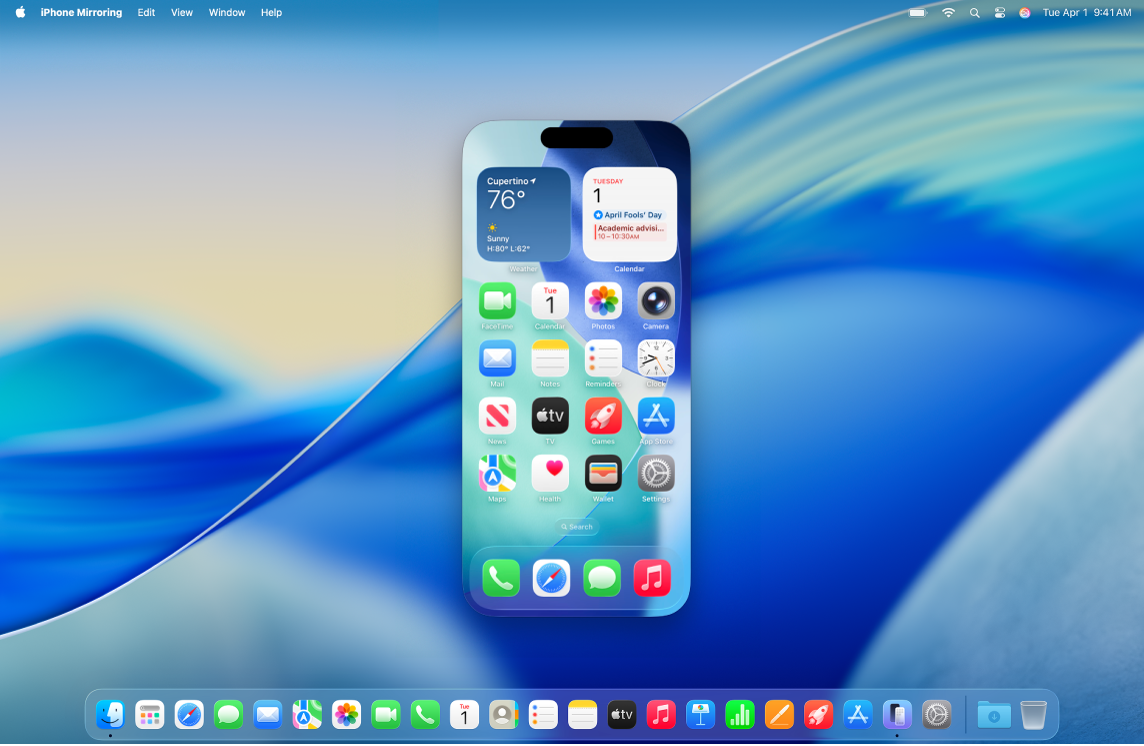
Note: Some iPhone features such as the camera and microphone aren’t compatible with iPhone Mirroring. Also, some Continuity features, like Continuity Camera and AirPlay, aren’t available on your Mac when using iPhone Mirroring.
Before you begin
Make sure of the following:
You’re signed in to the same Apple Account on both devices.
Your devices are within 30 feet (10 meters) of each other.
Your Mac has macOS 15 Sequoia or later and your iPhone has iOS 18 or later.
Both devices meet minimum system requirements for iPhone Mirroring.
If you’re using a VPN, make sure its configuration doesn’t prevent local networking, as that may interfere with some Continuity features.
To use iPhone Mirroring, it must be available in your country or region. iPhone Mirroring isn’t currently available in the European Union.
If iPhone Mirroring isn’t available in your country or region, iPhone Mirroring tells you that it’s unable to connect to your iPhone for that reason.
Set up iPhone Mirroring on your Mac
Make sure your iPhone is turned on and nearby, with the screen locked.
Go to the iPhone Mirroring app